Quick answers, network status, and the fastest way to reach a real person. We pick up Mon–Fri 9am–4:30pm for sales and accounts, and 7 days 8am–8pm for support.
Last checked: just nowSeeing problems we haven't spotted? Tell us
Setup & troubleshooting guides.
Quick step-by-step fixes for the most common issues. Click a guide to expand.
For wireless customers only. If you're on fibre, your setup uses an ONT (optical network terminal) supplied by Chorus, not a POE injector — please call us if you're having trouble with your fibre connection.
Your wireless setup has an external antenna or dish on your roof that connects to our network. Inside the house there's a POE injector (small box that powers the antenna) and a router (typically TP-Link branded if we supplied it). Use this guide to make sure everything's connected the right way.
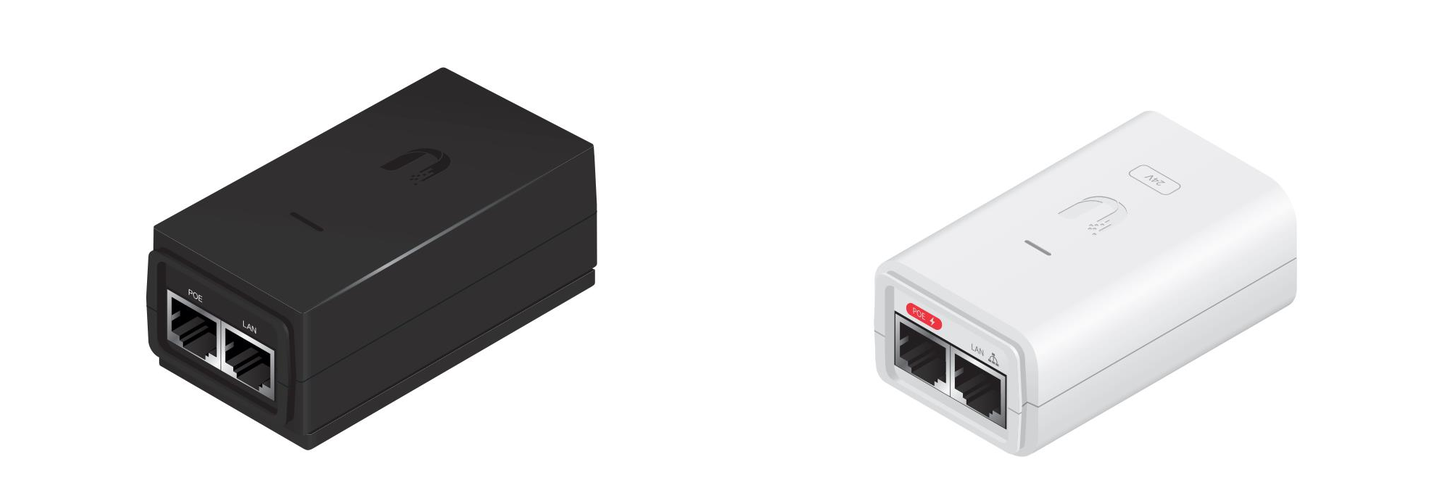
POE injectors come in black or white — both work the same way.
What you're checking: the POE injector has power, the router has power, and the cables run in the right direction between them.
Find your POE injector. It's a small black or white box with two ethernet ports labelled POE and LAN, and a power cable.
Make sure the POE is plugged into the wall and there's a small light on top. If there's no light, try a different power point — that'll tell you whether it's the power point or the POE that's faulty.
Check your router is plugged into power and has lights on top. If no lights, look for a power button on the back and turn it on.
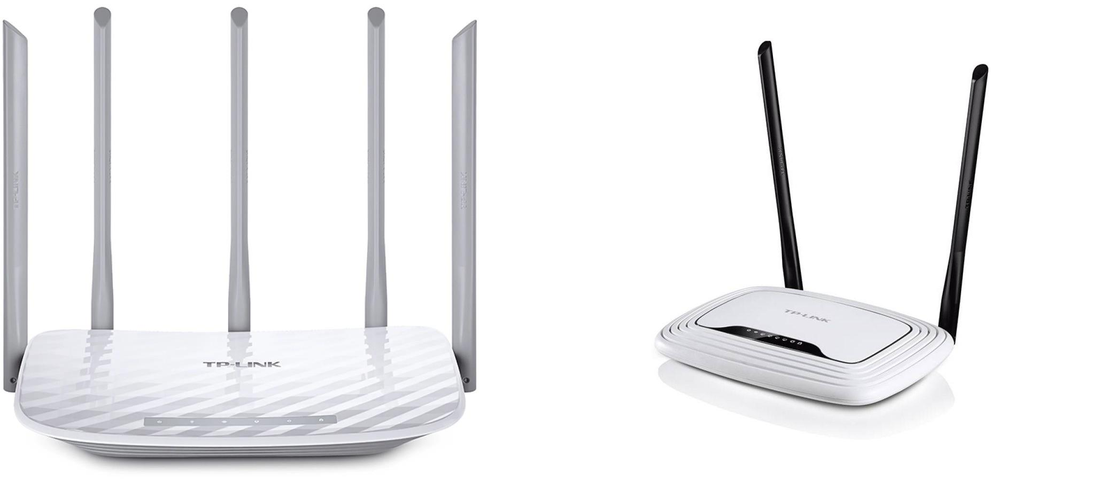
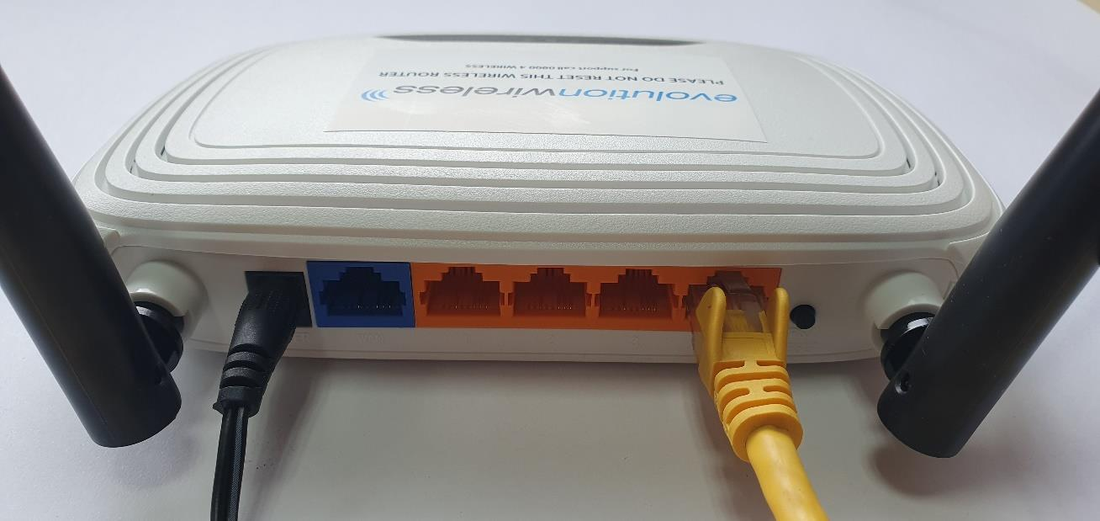
If we supplied your router, it'll be a TP-Link in one of these styles.
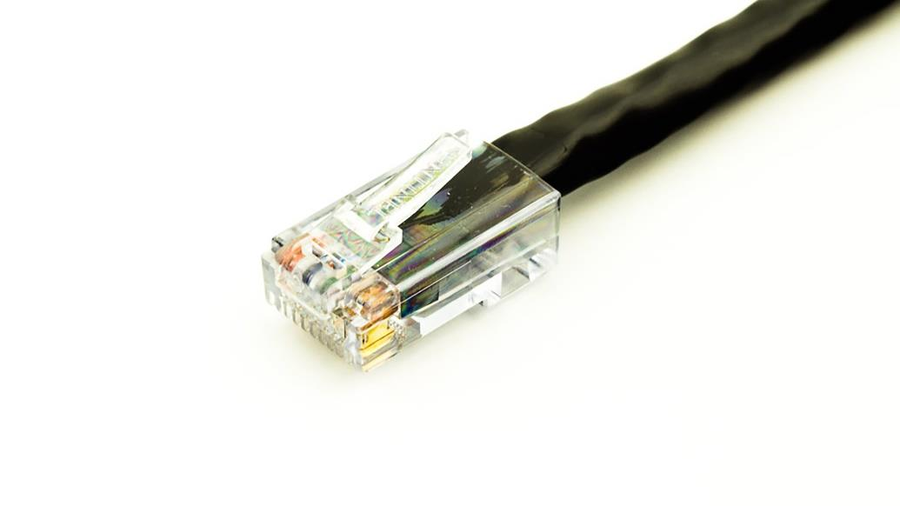
Find the black ethernet cable coming into your house from the antenna or dish outside. The end will look like this:
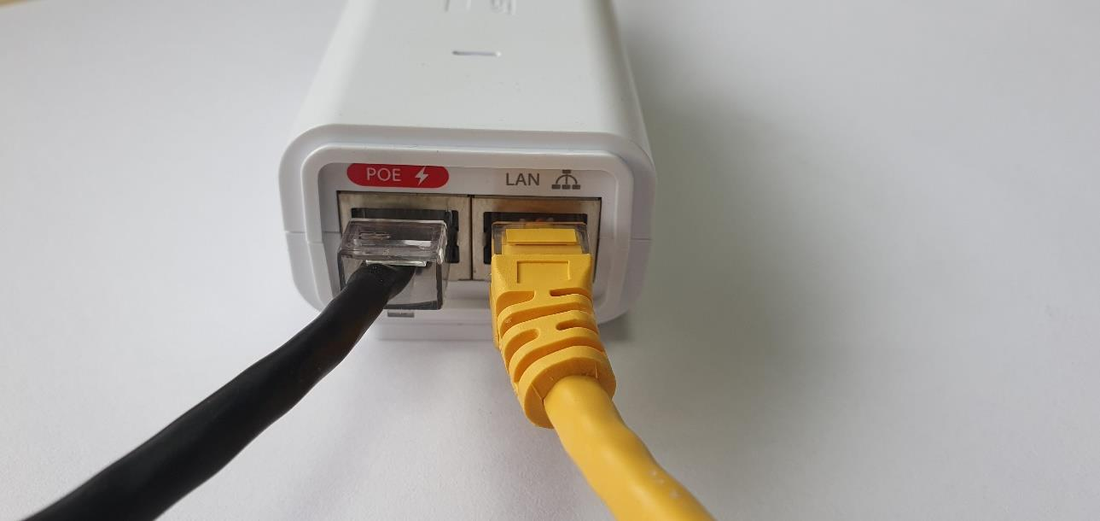
Plug it into the POE port on the front of the POE injector.
Find the second ethernet cable (usually yellow, grey, or white). Plug one end into the LAN port on the POE injector, and the other end into one of the orange/yellow ports on the back of the router.
Black antenna cable in POE, yellow ethernet in LAN.The other end of the yellow cable goes into any of the orange ports.
Once everything's plugged in and lights are on, you should be back online.
Still not working? Try power-cycling: unplug the POE for 30 seconds, then plug it back in. Wait 2 minutes for it to come back up. If that doesn't fix it, give us a ring on 0800 4 WIRELESS.
Download as PDF
If we supplied your router, it's a TP-Link and you can change the WiFi password yourself. You'll need a device that's already connected to the WiFi (or plugged in by ethernet).
While connected to your WiFi, open a web browser (Chrome, Safari, Firefox, Edge — any will do).
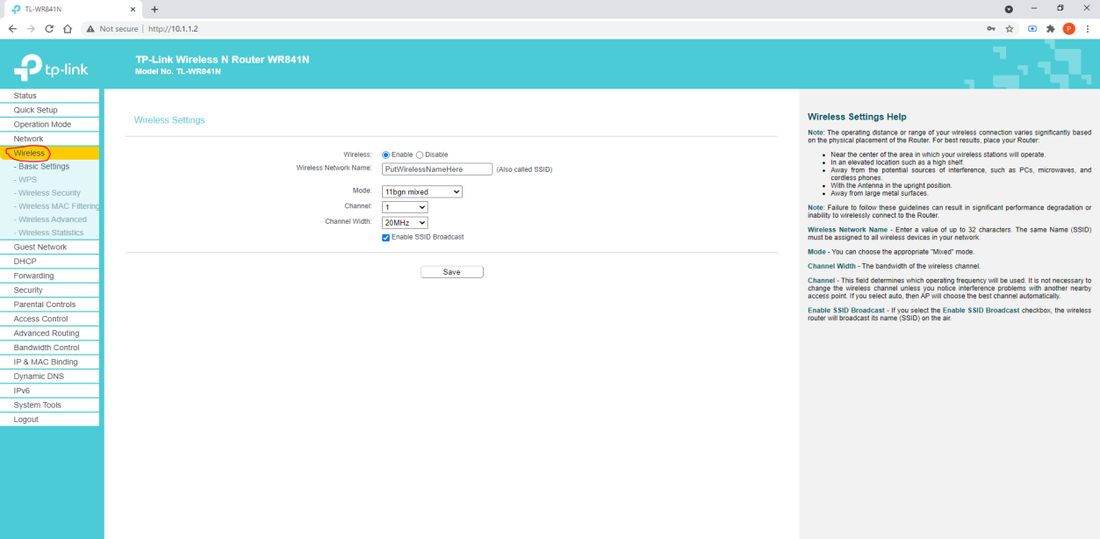
In the address bar, type 10.1.1.2 and press Enter.
You'll be asked for a username and password. Try:
Username admin / password admin
Or username admin / password admin1
Click Login.
On the left-hand menu, click Wireless. Your WiFi network name is in the centre, in the box labelled Wireless Network Name.
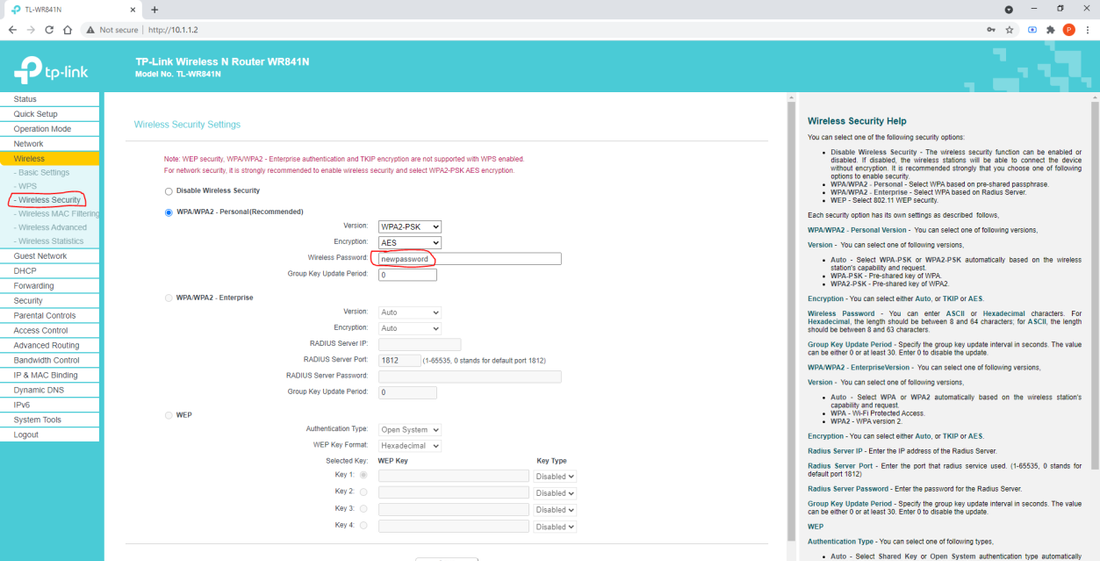
Below that, click Wireless Security. Next to Wireless Password you'll see your existing password.
Change the password if you'd like — it must be at least 8 characters.
Click Save.
On every device connected to your WiFi, "forget" the network and reconnect using the new password.
Heads up: after changing the password, every device on your WiFi will disconnect and need to be reconnected. That includes phones, laptops, smart TVs, security cameras, smart-home gadgets — anything that uses WiFi.
Download as PDF
If your TP-Link router has been factory-reset (someone hit the reset button, or it was unplugged and reset itself), you'll need to set it up again to work with our network. This guide walks through the full setup.
You'll need: a laptop or desktop computer that you can plug into the router with an ethernet cable. WiFi-only setup won't work for this.
Connecting your device
Unplug all cables from the router except the power cable. Plug your laptop or desktop into one of the orange ports on the back using an ethernet cable.
If you can't connect by cable, give us a ring on 0800 4 WIRELESS — we'll talk you through an alternative.
Configuring the router
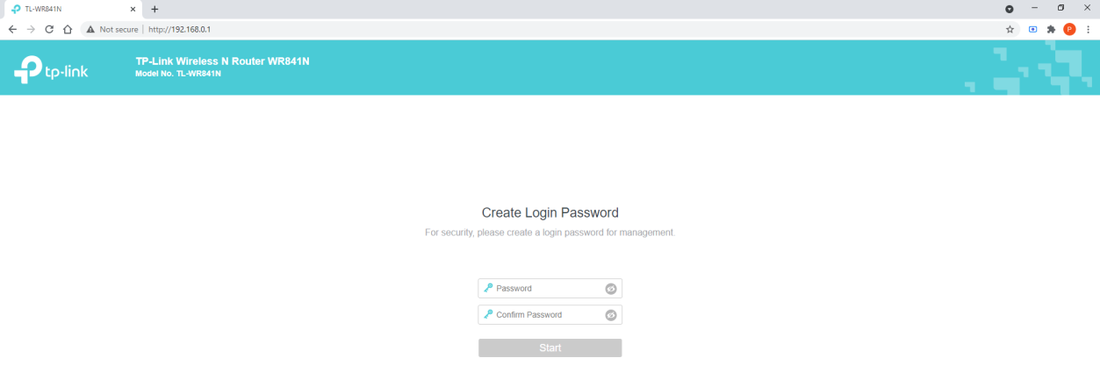
Open a web browser and type 192.168.0.1 in the address bar.
You'll be prompted to create a password. We use admin1 by default. Type it twice, then click Start.
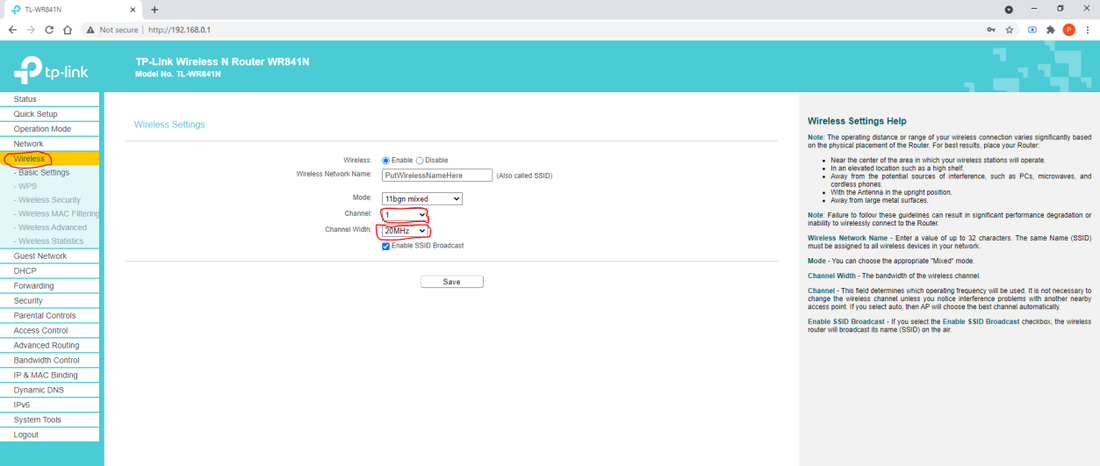
On the left-hand menu, click Wireless. In the centre, change Wireless Network Name to whatever you'd like (for example, Smith Family WiFi).
Set Channel to 1, 6, or 11.
Set Channel Width to 20MHz.
Click Save.
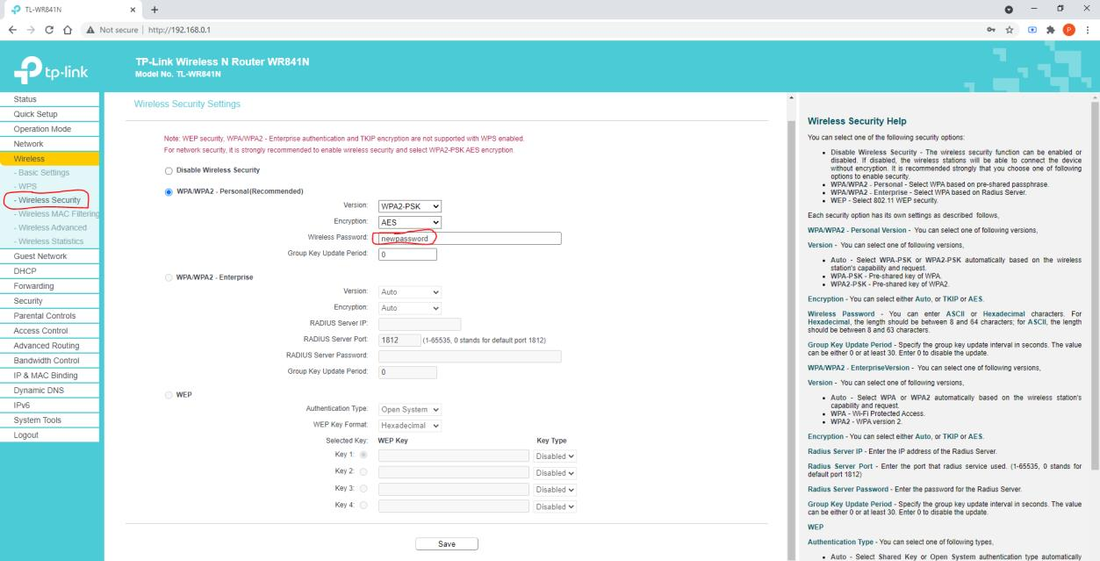
On the left, click Wireless Security. Set Wireless Password to whatever you'd like (must be at least 8 characters). Click Save.
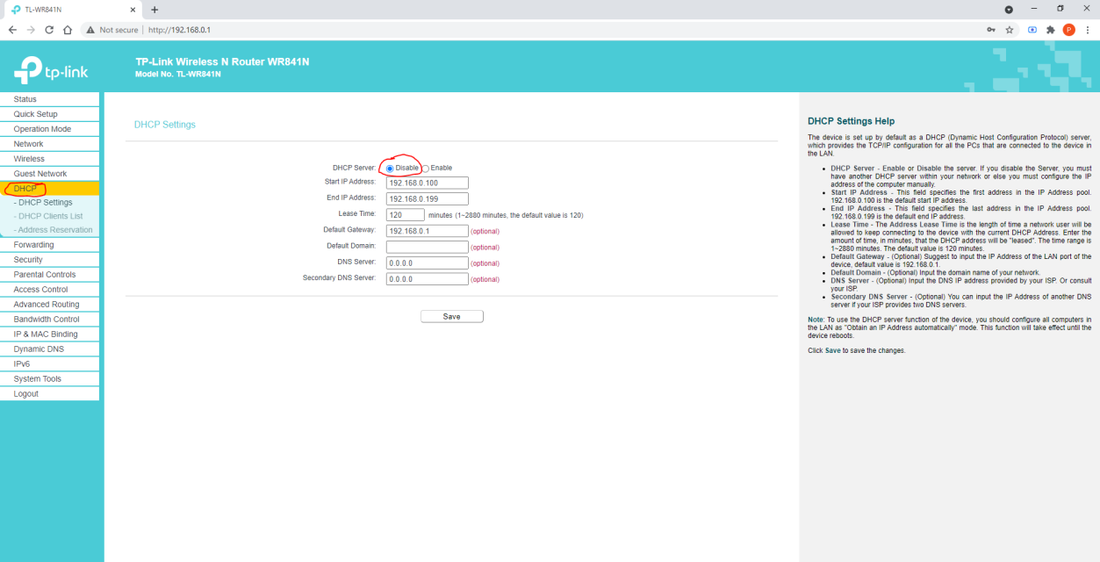
On the left, click DHCP, then click Disable. Click Save.
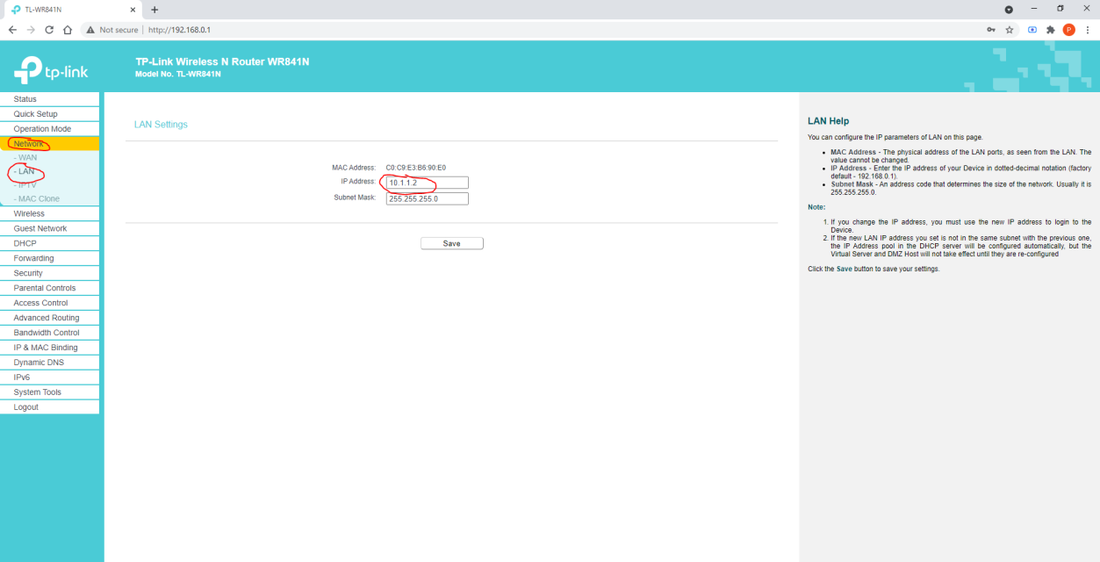
On the left, click Network → LAN. Change the IP Address to 10.1.1.2. Click Save.
The router will reboot. Once it's back, plug the cable from the LAN port of your POE injector into any of the orange ports on the router.
Make sure the POE has a light on top, and that the black cable from outside is plugged into the POE port (next to the LAN port).
Connect to your new WiFi network and check you've got internet.
If you get stuck at any step, give us a ring on 0800 4 WIRELESS and we can walk you through it. There's a lot of steps and a couple of them have to be exactly right for the router to work on our network.
Download as PDF
Frequently asked questions.
Most common stuff first. Click a category to filter, or scroll the lot.
Send us your address through the contact form or call 0800 4 WIRELESS (0800 494 735). We check what's available at your place — fibre, wireless, or both — and come back with a recommendation.
No contracts, no setup fees for standard installs, and you can change plans whenever.
Mercury is retiring the NOW brand. Home accounts move onto Mercury broadband automatically unless you choose otherwise, and business accounts aren't being taken on at all — those customers need to find a new provider.
Fibre: 1–2 business days from sign-up if the line's already at your place. Fresh installs from Chorus typically 5–10 working days.
Wireless: 1–3 business days. We come out, mount a small dish, align it with one of our sites, and you're online.
Phone / VoIP: 1–6 business days, depending on whether you're porting a number.
We recommend one, yes — for both fibre and wireless connections. We can sell you a pre-configured router or you can use your own.
Monthly, in advance, by invoice — payable online or at your bank. Your first invoice covers just the days you're connected in the current month, so it's typically lower than a standard monthly charge. Every invoice after that is the regular monthly amount.
Invoices arrive at the end or start of each month, delivered by post or email depending on your preference at sign-up.
Yes. Want to upgrade? We'll switch you over straight away and pro-rate the difference. Going down a plan? We'll set it up to kick in at the start of your next cycle. Either way, drop us a line and we'll sort it.
For now, give us a call on 0800 4 WIRELESS or send us a message. We're building a customer self-service portal that'll let you update payment, see invoices, and check usage — coming later this year.
We'll email a reminder before doing anything. If we can't sort payment after a couple of weeks, the service may be slowed or paused — but we'll always try to talk to you first. Things happen. Just give us a ring on 0800 4 WIRELESS and we'll work something out.
Yes — top-ups are $15 for 20GB. Just send us a message or call 0800 4 WIRELESS and we'll add it to your account. The top-up applies to your current billing cycle.
The boring-but-effective routine, in order:
Check the network status above — if something's red, we're already on it.
Power-cycle your router: unplug the power, wait 30 seconds, plug it back in. Wait 2–3 minutes for it to settle.
If you have wireless: check the dish power supply (usually a small box plugged into the wall) — make sure its lights are on.
Try a wired connection if you can — rules out a Wi-Fi-only problem.
Still stuck? Send us a fault or call 0800 4 WIRELESS. Our support is open 7 days, 8am–8pm, with a 1-hour callback during support hours.
If you're on a data-limited plan (Wireless 80 or Wireless 120), check your usage page first — once you hit your monthly allowance, speeds are throttled to 1 Mbps until the next billing cycle.
Run a speed test at fast.com on a wired connection (Wi-Fi can knock 30–50% off). Test at a quiet time first, then again at 7–9pm if you suspect peak congestion.
What to expect:
Fibre Fast (500/100): 500–550 Mbps down on a wired connection.
Fibre Fastest (900/500): 900–955 Mbps down on a wired Gigabit connection.
Wireless: close to plan speed off-peak; a bit lower at peak times if you're on a busy site.
If you're consistently below half your plan speed wired, that's worth us taking a look. Send us a fault.
That's almost always a Wi-Fi issue, not an internet one. Quick checks first:
Router placement matters. Central, elevated, away from thick walls and metal. Not in a cupboard.
Older routers (more than 5 years) struggle with modern devices. If yours is from your last ISP, it might be due an upgrade.
For larger homes, multi-storey places, or stubborn dead spots, a proper mesh setup is the real fix — multiple access points covering every corner, one network name, no dropouts as you move between rooms. We sell and install whole-home mesh wifi using Grandstream gear (same kit we use in commercial deployments). Get a quote and we'll size it for your place.
Head to the usage page from your Evolution Wireless connection, and you'll see your current month's usage automatically. If you're on an unlimited plan, you don't need to worry about it — but the page works for everyone.
VoIP rides on your internet, so first check that's working. If it is, try these:
VoIP phone (corded or cordless SIP handset) — power-cycle the phone (unplug, wait 30 seconds, plug back in) and make sure its network cable is properly connected to your router or PoE switch.
2talk softphone (app on your computer or mobile) — try logging out and back in.
Still nothing? VoIP is provided by 2talk, so phone faults are best raised with their support team direct — they've got visibility into the line. Call 09 281 4357 (Mon–Fri 9am–5pm) or open a ticket via the 2talk support portal. If your internet's also down, that's our problem — give us a ring.
Almost always yes. Number porting from another provider takes 1–6 business days and is free. We'll keep your old line live until the new one's ready, so there's no gap. Just send us your current account details when you sign up.
No — VoIP runs over your internet, which dies when the power dies. That includes 111 calls. If anyone in your household relies on a landline for medical alarms or has vulnerable-customer status, keep a charged mobile handy as backup. We can also supply a UPS that keeps your phone and internet running for up to 12 hours without power — ask us if you'd like one.
Let us know your new address ideally 2 weeks ahead. We'll check what's available there (fibre, wireless, both) and book the install for the day you move in or shortly after.
If you're moving out of our wireless coverage area, we can usually still do fibre nationwide.
Email or call with 30 days' notice, no exit fee, no contract penalties. If you're moving to another provider that needs your number ported, tell them you want to keep it and they'll sort the port with us.
If you're cancelling because something's not working for you, please tell us why first — we might be able to fix it.
We own the dish and the equipment. If you cancel, we arrange a quick visit to remove it (or sometimes leave it for the next tenant if they're signing up too). No charge either way.
Still stuck?
Real Kiwi team in Gisborne, no offshore call centre. Most calls answered in under a minute during business hours. Support 7 days a week, 8am–8pm.